What to save: statements and documents
Now: web banking and the app do not work
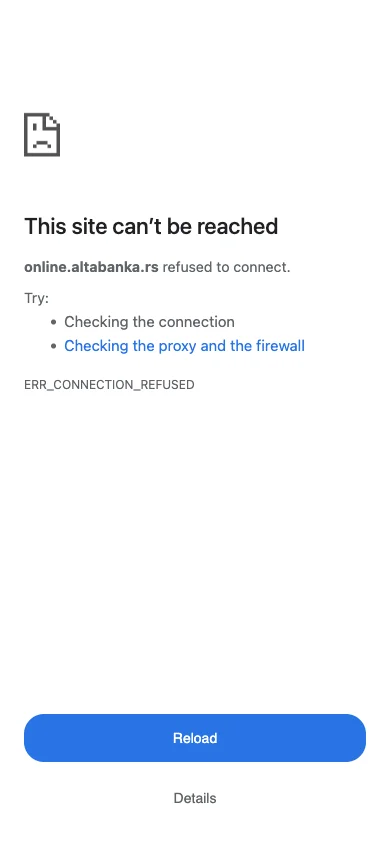
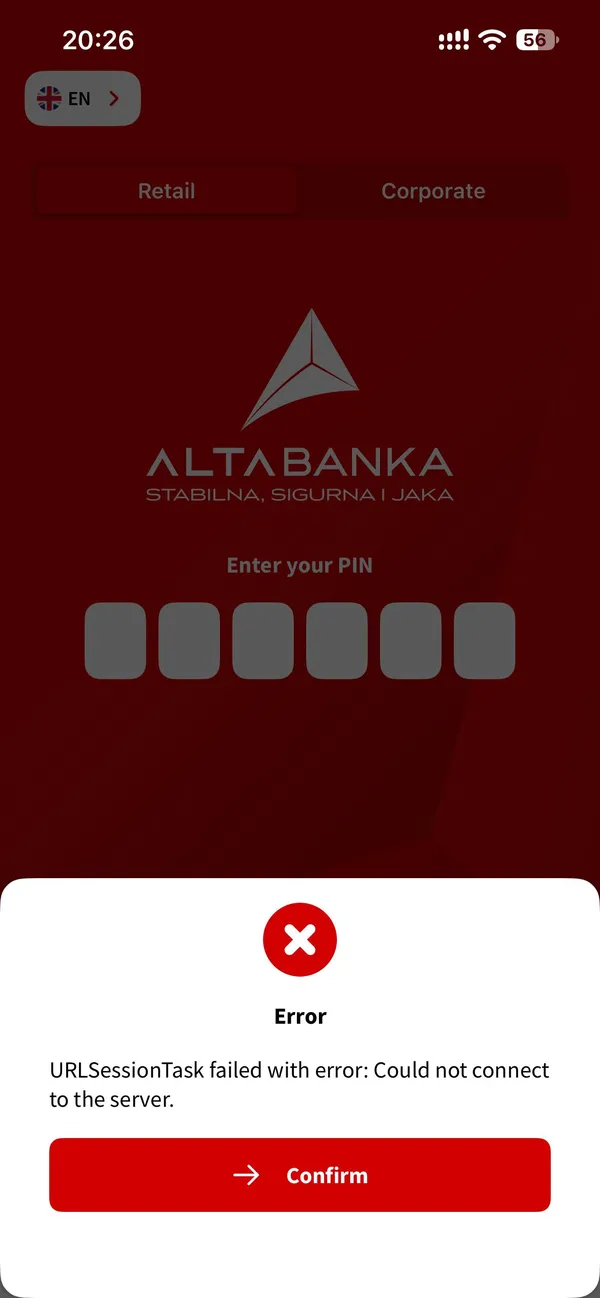
Section titled “Now: web banking and the app do not work”The ALTA web banking (online.altabanka.rs) no longer opens. On 05.11.2026 the browser showed «online.altabanka.rs refused to connect» (ERR_CONNECTION_REFUSED): the bank’s server refuses the connection. The ALTA mobile app does not work either (checked 05.11.2026). After you enter the PIN it shows «Error — URLSessionTask failed with error: Could not connect to the server.» You will need statements in two cases: if the paying bank’s calculation does not match yours, and for a claim above €50,000.
The bank in bankruptcy says on its website: «Платне услуге и електронски сервиси банке више нису у функцији и сви рачуни клијената су затворени» (payment and electronic services no longer work and all client accounts are closed; altabanka.rs, checked 05.11.2026). New statements cannot be downloaded now, so rely on what you have already saved.
The payout is calculated from the balance on the day bankruptcy was opened (03.11.2026), with interest up to that day (Law on Deposit Insurance, art. 16 para. 1). So you need both the contracts and the balances with dates.
What to do without statements
Section titled “What to do without statements”- Gather what you already have: contracts, ALTA statement emails in your mailbox (how to keep an email whole), bank SMS messages with balances, paper receipts, old PDFs and screenshots.
- For the payout up to €50,000 the paying bank needs a photo ID and the original deposit document: a contract, a savings book, a «картица текућег динарског или девизног рачуна» (card of a dinar or foreign-currency current account) or another document from the AOD list (AOD notice, 06.11.2026) (what to bring). No contract: what to do.
- Keep any unused ALTA cheques: they are handed in at ALTA banka in bankruptcy, and the settlement confirmation is the basis for paying the withheld part of the insured amount (AOD notice, 06.11.2026; details).
- For a court claim above €50,000: contracts, account and deposit numbers, and statements with the balance on the latest available date (how to file a claim). You state the amount in the claim yourself: the principal and, separately, the interest; AOD then checks it (Bankruptcy Law, art. 111).
ALTA sent statements to the e-mail registered at the bank: search your mailbox for those emails. Save the bank’s SMS messages about balances and paper receipts. Bank support no longer works: the bank is in bankruptcy, its services are off and accounts are closed. Questions on the payout: AOD (011/7358 661, [email protected]) and Poštanska (011/2020 292, [email protected]); on claims: AOD, the bank’s administrator (bank website, AOD).
Keep statement emails whole
Section titled “Keep statement emails whole”Our advice: keep the monthly emails from ALTA whole, not only the PDF attachment. In Gmail: the message menu “Download message” gives you an .eml file. The original email usually carries the bank’s digital signature (DKIM), which confirms the email came from the bank. A PDF attachment on its own does not prove that.
Archive: ALTA web banking, Corporate and OfficeBanking (not working or not checked after 05.11)
What to save
Section titled “What to save”- Your passport, and your residence permit if you have one. The paying bank needs a photo ID (AOD procedure, section VIII).
- Current and foreign-currency account agreements and the deposit agreement; if there is no paper copy, a PDF from your mailbox or a photo (for the payout up to €50,000 these do not replace the original).
- A screenshot of the web banking home page (“Početna”): all accounts with numbers and balances. The most useful picture if nothing else opens.
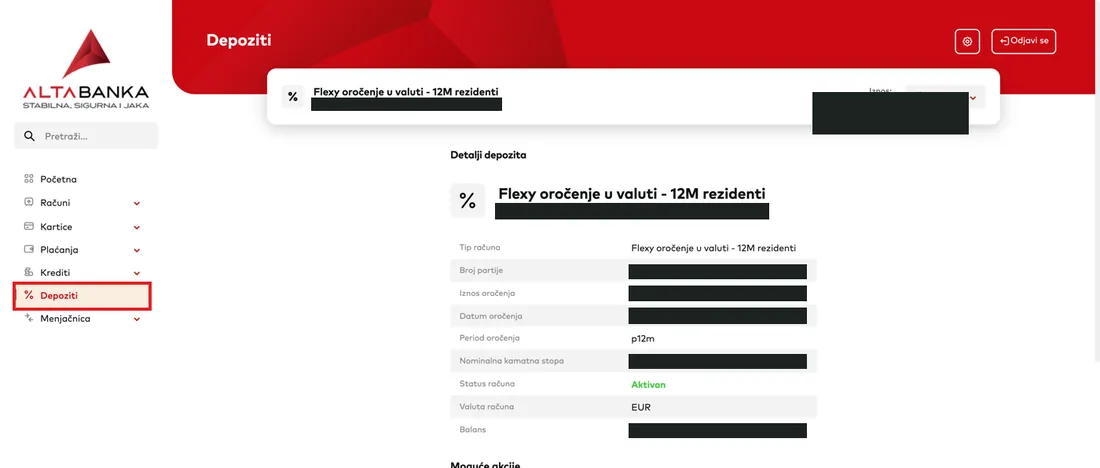
- Each deposit (“Depoziti”): a screenshot of the whole “Detalji depozita” page, with the deposit number, amount, rate and balance.
- PDF statements for each account, dinar and foreign-currency separately, from the day the account was opened or at least for 2026.
- Transactions for October (“Promet po računu”, 01.10–31.10): they are not in any monthly statement yet.
- Account details (“Detalji računa”), cards (“Kartice”) and loans (“Krediti”): keep the loan balance, because a loan is not forgiven in bankruptcy.
- Screenshots with the date visible (the phone or computer clock in the frame). Keep them off your phone: in the cloud or your mailbox.
How to export statements from the web banking
Section titled “How to export statements from the web banking”- Find your login (“Korisničko ime”). In the ALTA mobile app: profile (person icon), the “My data” tab, the “Username” field. Do not confuse it with “User’s Full Name” (a name with a space): the login is “Username”.
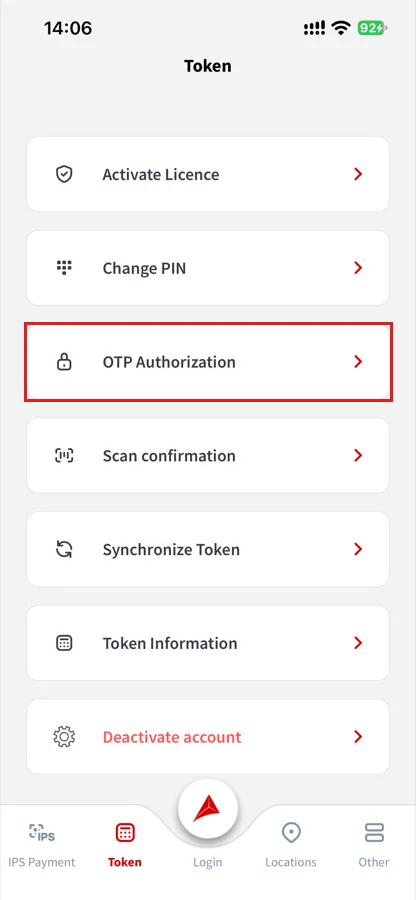
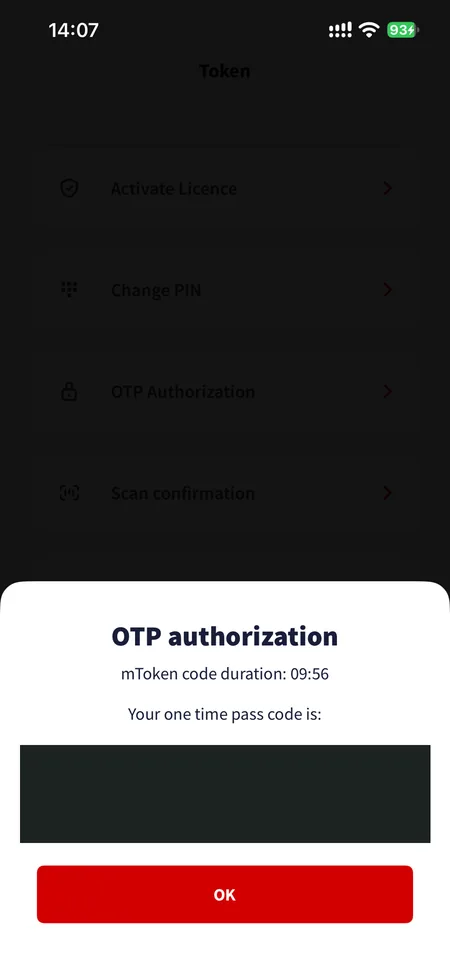
- Get the code without logging in to the app: the “Token” tab at the bottom, “OTP Authorization”. An 8-digit one-time code appears and is valid for 10 minutes.
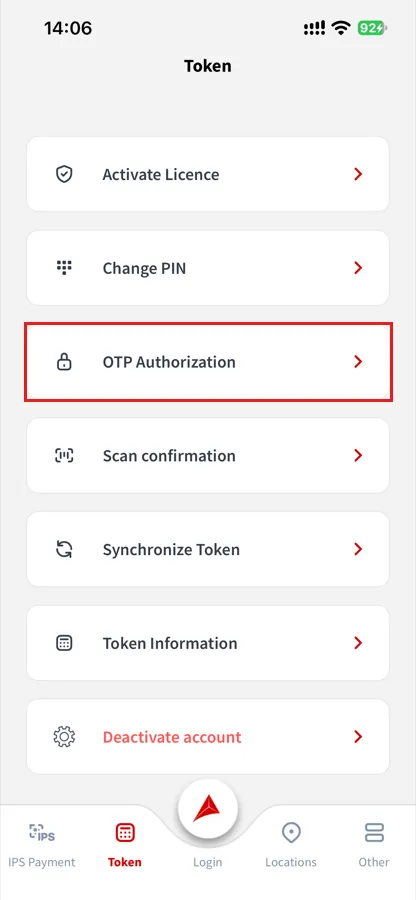
The ALTA app, no login needed. At the bottom open the “Token” tab and tap “OTP Authorization” (outlined). Click to enlarge. 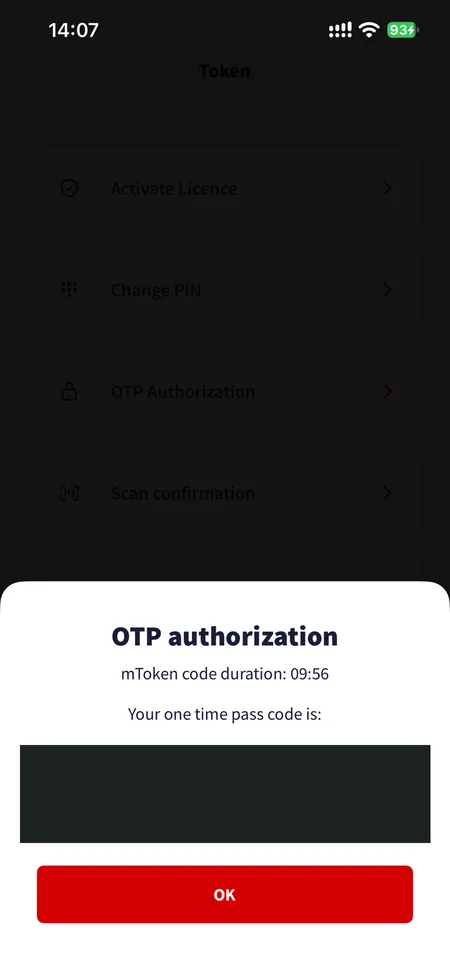
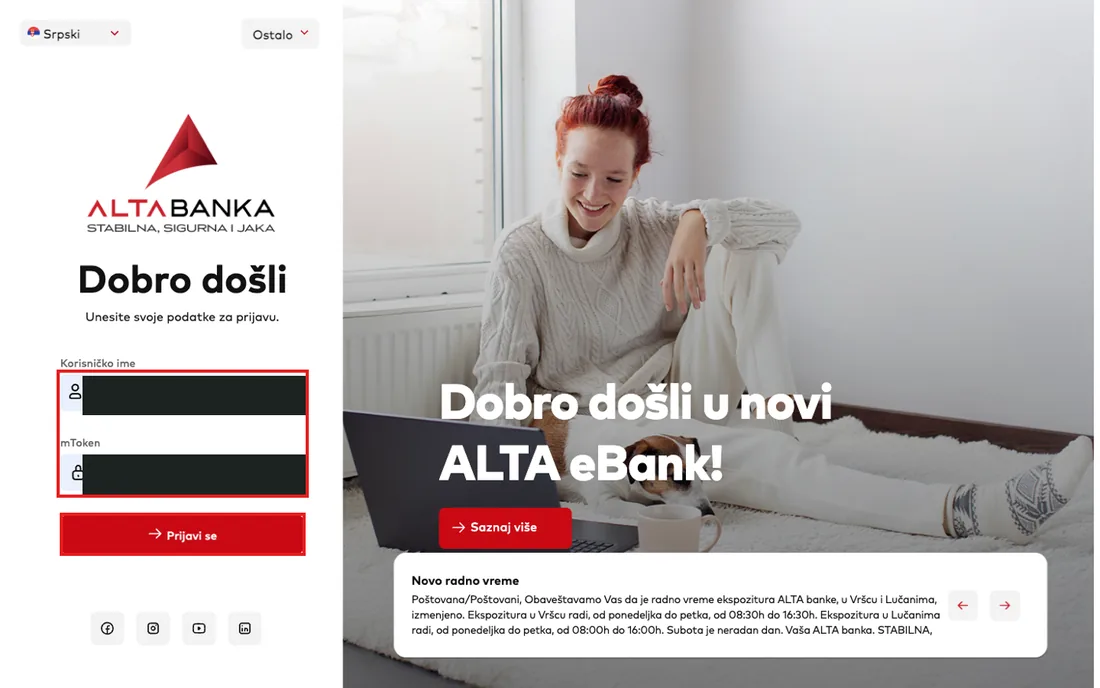
An 8-digit code appears (covered in the screenshot) with a 10-minute timer. You type this code on the website instead of a password. Click to enlarge. - Open online.altabanka.rs/Retail. Enter your login, and in the password field (“mToken”) the code from step 2, then press “Prijavi se”.
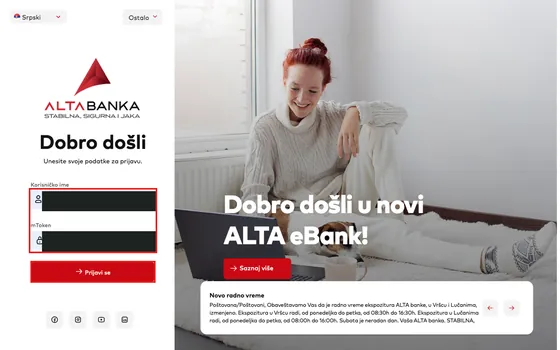
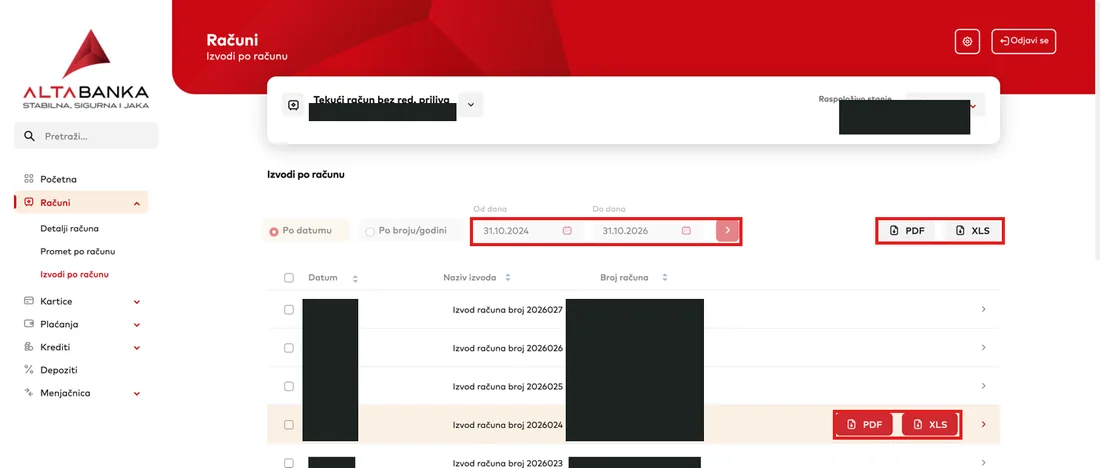
The login page. Your login (“Korisničko ime”) in the first field, the code (“mToken”) in the second, then “Prijavi se”. The fields and the button are outlined; what was typed is covered. Click to enlarge. - On the left “Računi”, “Izvodi po računu”. Choose the account at the top (dinar and foreign-currency separately). In “Po datumu” set the period and save the “PDF”. About 6 months are returned at a time, so export in pieces.
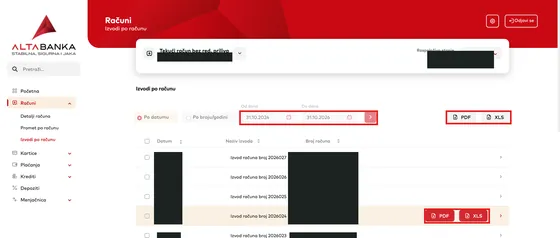
“Računi”, “Izvodi po računu”. Outlined: the period (“Od dana”, “Do dana”) with the red arrow, the “PDF” and “XLS” buttons for the whole period, and “PDF” on a single statement. Account numbers and dates are covered. Click to enlarge. - On the left “Depoziti”: open each deposit and take a screenshot of the whole “Detalji depozita” page (deposit account number, amount, rate, balance), with the date visible.
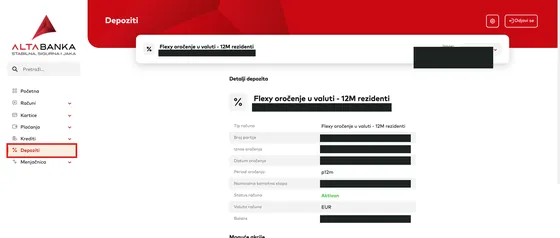
“Depoziti” in the left menu (outlined), then “Detalji depozita”. Batch number, amount, rate and balance are covered. Click to enlarge. - A section may answer “Dogodila se nepoznata greška”: wait a minute and open it again. A PDF sometimes lands in “Downloads” without a download window.
If you are a sole trader or a company
Section titled “If you are a sole trader or a company”Sole traders and companies log in differently, and many have no web access. Below is depositors’ experience, not a bank instruction: it is not confirmed that login, synchronisation and export still work after the licence was revoked. If it does not go through, save at least a screenshot of the screen with your accounts.
Corporate web banking
Section titled “Corporate web banking”Address: online.altabanka.rs/Corporate. It was enabled at a branch, so many do not have it. Easy to check: look for a personal/business profile switch in the app. If you have it, do the same as for personal web banking: the code from the app (business profile), log in, statements for each account.
OfficeBanking and a card reader
Section titled “OfficeBanking and a card reader”You need a Windows computer: put the “eBanking” card into the USB reader, open ALTA OfficeBanking and enter the card PIN. After logging in press “Synchronise” (“Синхронизовать”) at once, or the program shows balances as of your last login.
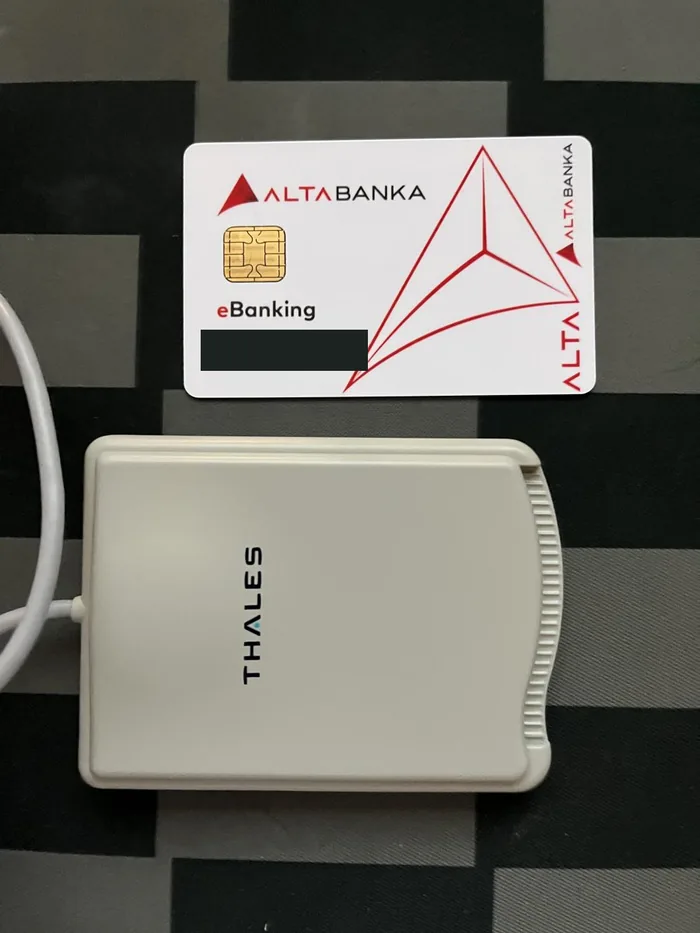
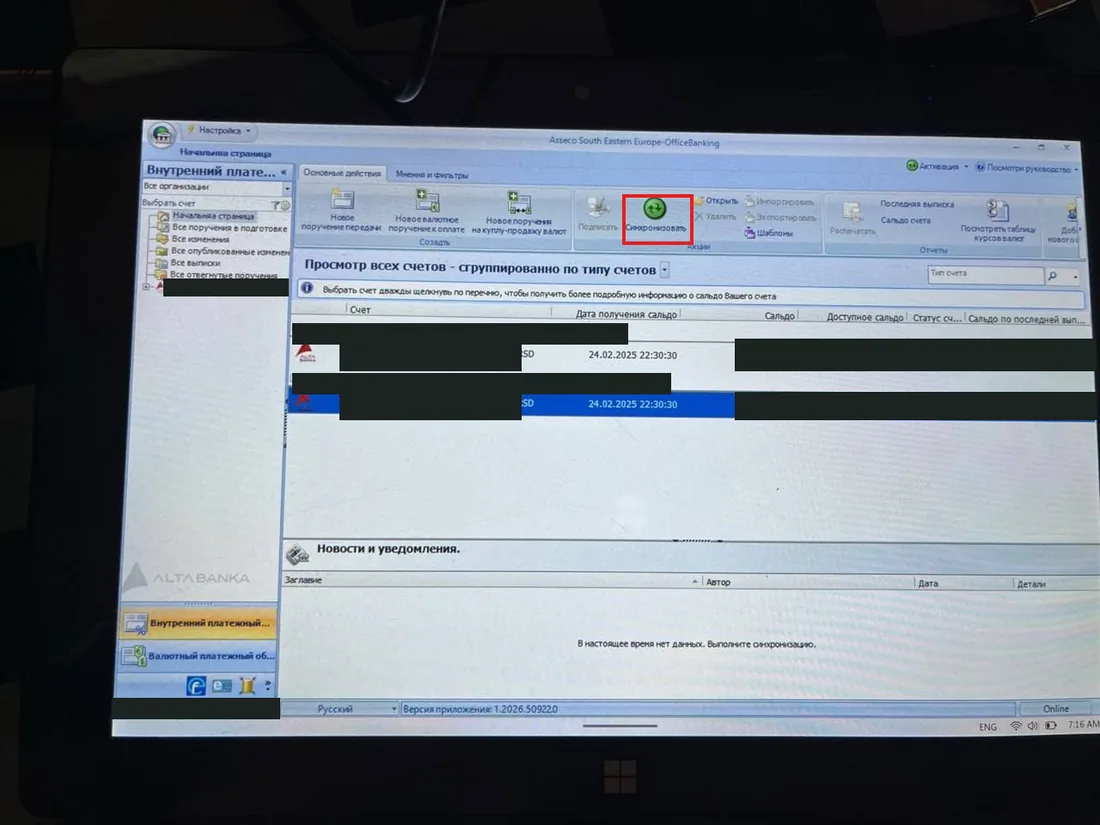
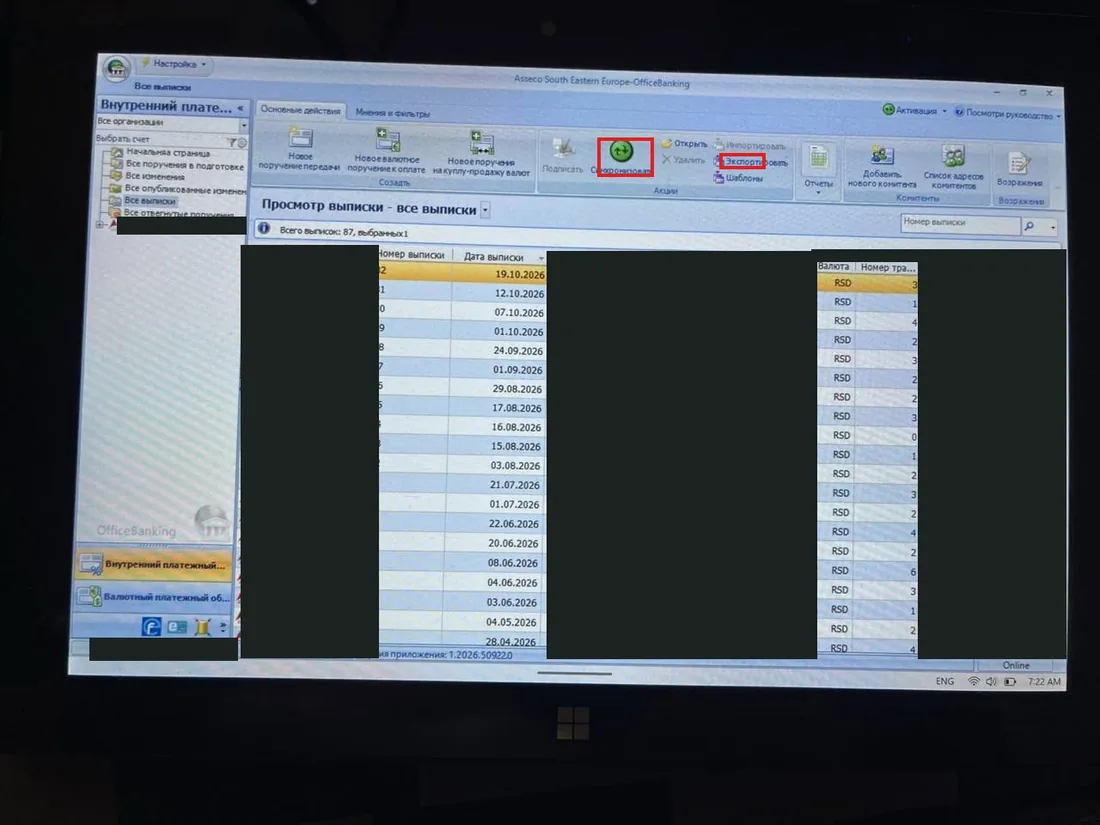
Your accountant may have had access too: ask them to export statements as well. Save the same as for personal accounts: statements for each account, October transactions, balances, loans and unexecuted payments.
Do not send statements to anyone
Section titled “Do not send statements to anyone”Do not send statements, contracts or screenshots to anyone except your lawyer and AOD through an official channel. More: how to avoid scams.